
Welcome to The TradingView Mobile App
If you are using TradingView on your mobile phone, the goal is not just to open a chart and stare at candles. The goal is to turn your phone into a simple, organized trading workstation that helps you find stocks, read the chart, mark important levels, set alerts, and practice your decision-making.
In this walkthrough, I am breaking down the most important parts of the TradingView mobile app, especially for beginners who want to use technical analysis without feeling overwhelmed. Once you know where the tools are, the app becomes a lot easier to use.
This is not about making the app complicated. It is about building a repeatable routine. Watchlist. Chart. Timeframe. Support and resistance. Alerts. Indicators. Practice. When you understand those pieces, you can approach the market with more confidence and less confusion.
Timestamps:
00:00 Intro: what the TradingView mobile app can help you do
00:28 - Watchlist screen overview
00:46 - How to create a new watchlist
01:01 - How to add symbols by ticker or company name
03:25 - Moving into the Chart tab and switching stocks
04:20 - How to move, compress, and view charts on your phone
05:23 - Changing from daily charts to intraday timeframes
07:57 - Opening drawing tools and saving favorite tools
10:20 - Drawing support and resistance with better precision
13:24 - Adding callout notes to mark important chart levels
15:15 - Using earnings, dividends, news, and chart settings
18:40 - Using layouts, split screens, and broker connection options
21:06 - Creating price alerts with a clear message and purpose
29:58 - Using Bar Replay to practice reading charts before the move happens
Key Takeaways:
1. Start with a clean watchlist.
A focused watchlist keeps you from jumping all over the market. Instead of trying to track everything, build lists around the stocks, indexes, sectors, or trades you actually care about.
2. You can search by ticker or company name.
If you know the ticker, type it in. If you only know the company name, type the name and TradingView will usually pull up the matching symbol.
3. Custom lists support top-down analysis.
A good mobile setup can help you move from the broad market to sectors, then down into individual stocks. That keeps your trading process organized.
4. The Chart tab is your main workspace.
This is where you will spend most of your time if you use technical analysis, candlesticks, support, resistance, and trend direction.
5. Chart scaling matters on mobile.
On a small screen, the chart can look distorted. Pulling the price scale down or turning the phone sideways can make the pattern much easier to read.
6. Timeframes should match your trading style.
A daily chart may be useful for swing trading. A three-minute or five-minute chart may be more useful for intraday trading. The timeframe has to match the decision you are trying to make.
7. Drawing tools help you mark the story of the chart.
Support, resistance, arrows, text, and callouts let you mark important areas so you are not relying on memory later.
8. Use coordinates for cleaner chart levels.
Mobile drawing can be a little tricky. Double-tapping a line and editing the coordinates lets you place levels more precisely.
9. Alerts should tell you what to do next.
Do not just set an alert that says a stock hit a price. Add a message that reminds you why that level matters and what you were planning to evaluate.
10. Indicators and Bar Replay help you practice with structure.
Indicators can support your analysis, and Bar Replay lets you practice decision-making by replaying the chart one candle at a time.
Step-by-Step TradingView App Tutorial:
Step 1:
Download and Open TradingView
Start by downloading TradingView from the Apple App Store or Google Play Store.
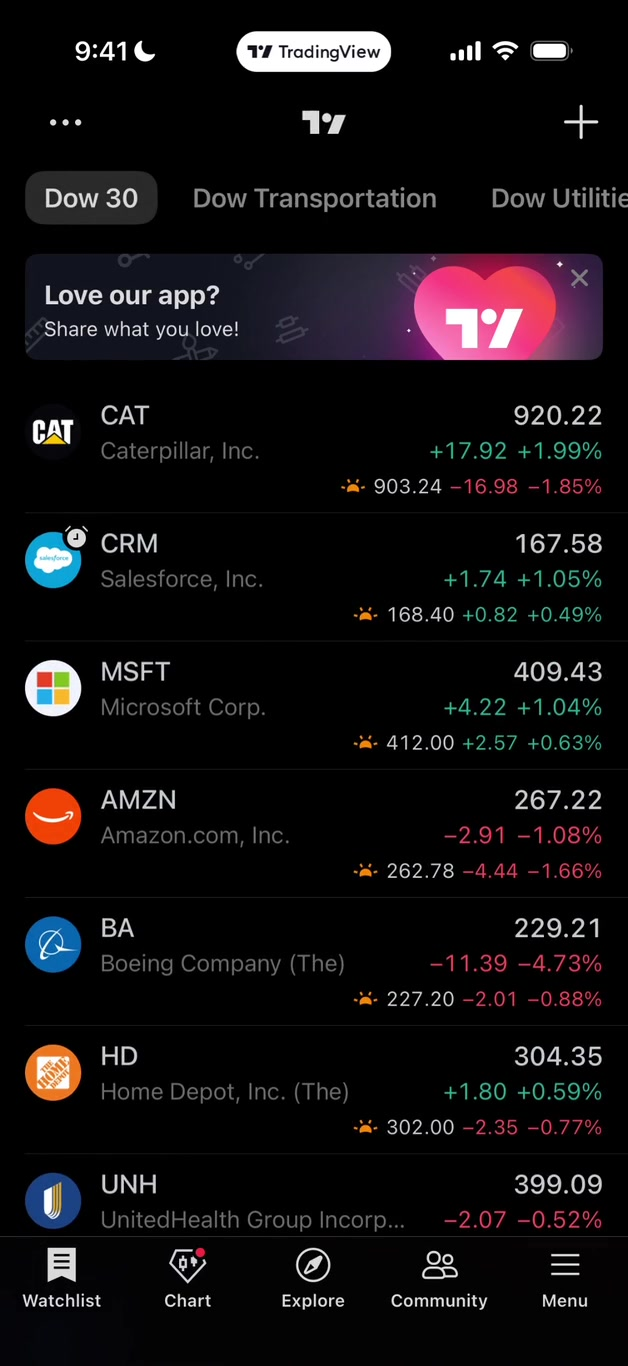
Once you open the app, the first screen you will usually see is the Watchlist screen.
This is your starting point for organizing the stocks and symbols you want to follow.
Step 2:
Create a Custom Watchlist
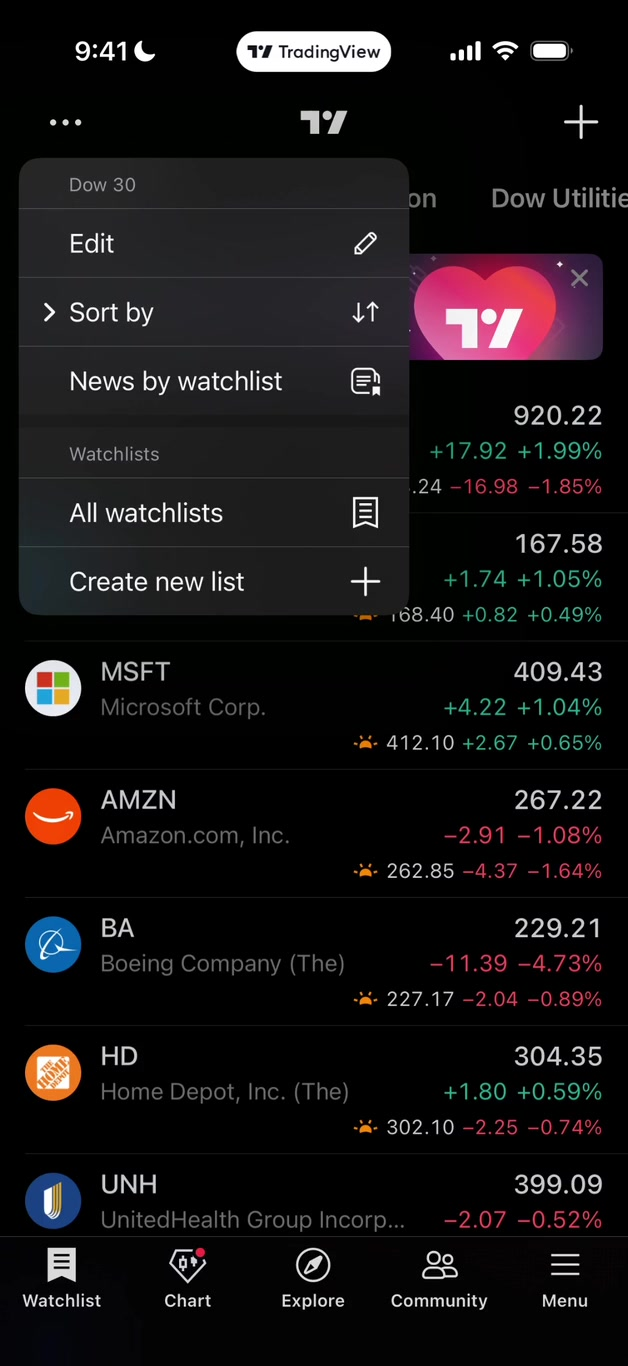
Tap the three dots in the top-left corner of the Watchlist screen, scroll down, and choose “Create New List.”
In the video, I created a simple test list.
Your real list could be built around your favorite stocks, current trades, sectors, indexes, or a specific strategy you are watching.
Step 3: Add Symbols
to Your Watchlist
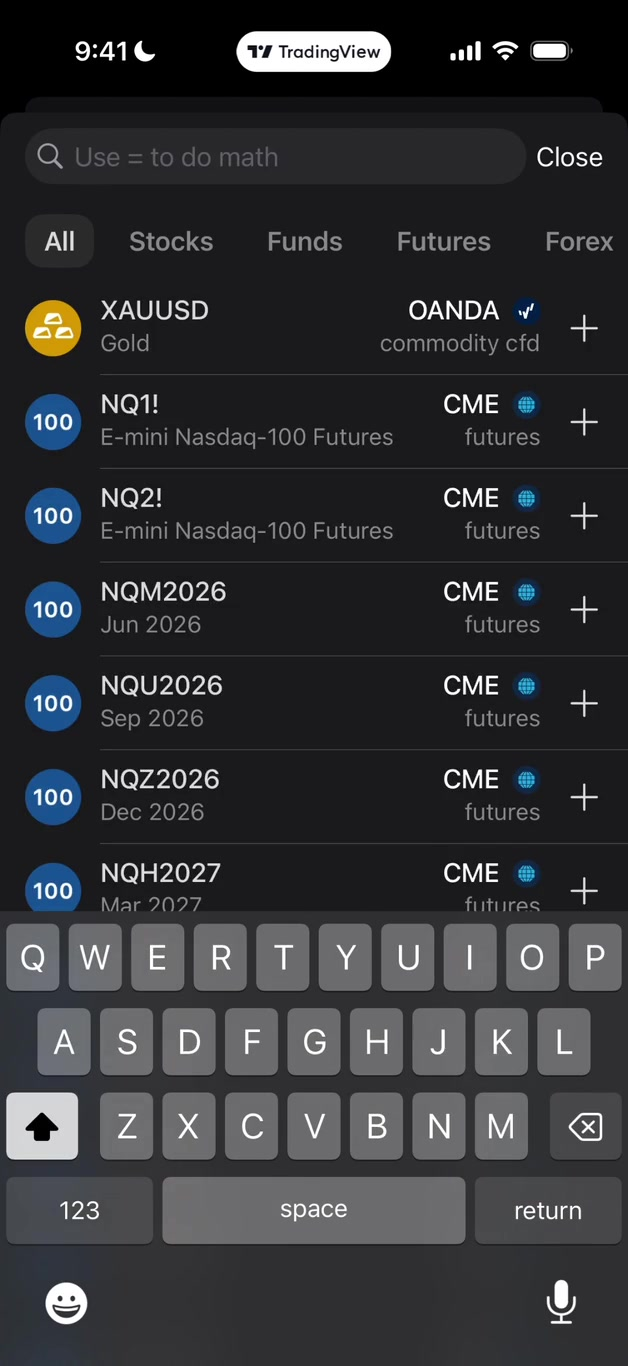
Tap “Add Symbol” and search for the stock you want.
You can type the ticker symbol, such as NVDA, AAPL, TSLA, or PLTR, or you can type the company name if you do not know the ticker. Tap the plus sign to add that symbol to your watchlist.
Step 4: Use Watchlists
to Stay Organized
Once your symbols are added, you can swipe across the top to move between different lists. I like using custom lists because they support a top-down process: start with the market, look at sectors, then drill down into individual stocks.
Step 5:
Open The Chart Tab
Tap the Chart tab at the bottom of the screen. This is where most traders will spend their time.
If you want to switch the ticker symbol, tap the symbol area at the top and search for the stock you want to chart.
Step 6: Make the Chart
Easier to Read
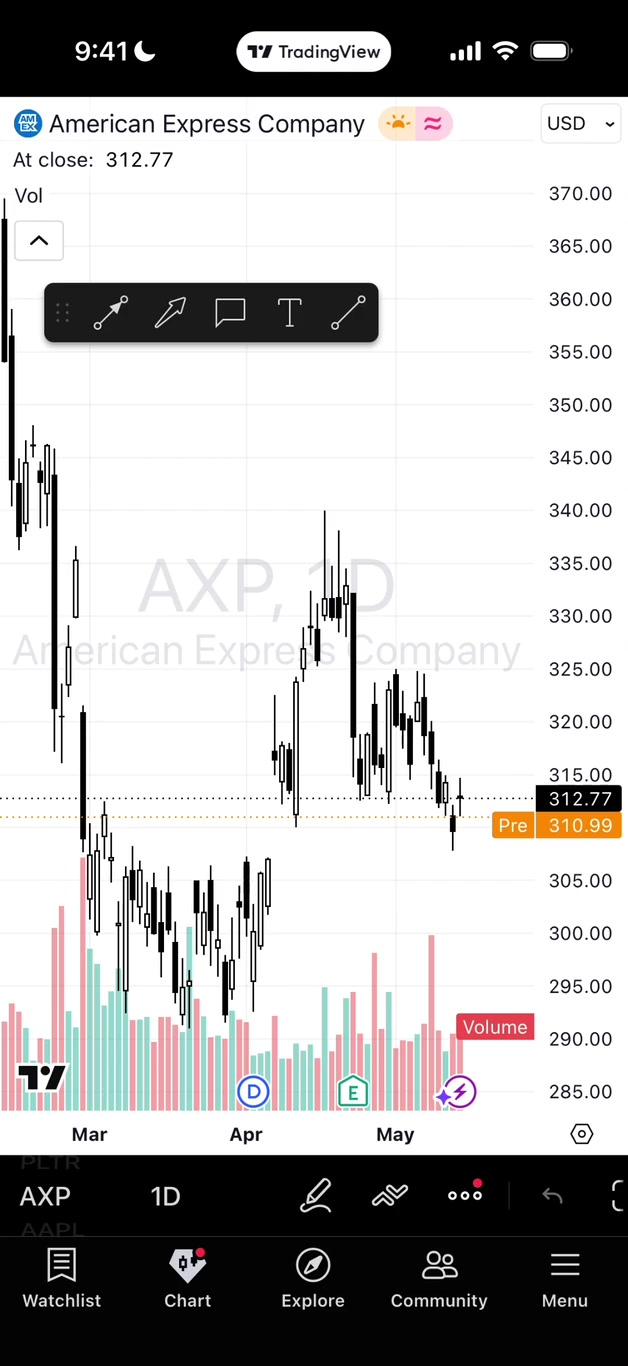
On mobile, the chart may look squeezed or stretched. Swipe left and right to move through price history.
Pull down on the price scale on the right side to compress the chart and make patterns easier to see. You can also turn your phone sideways for a wider view.
Step 7:
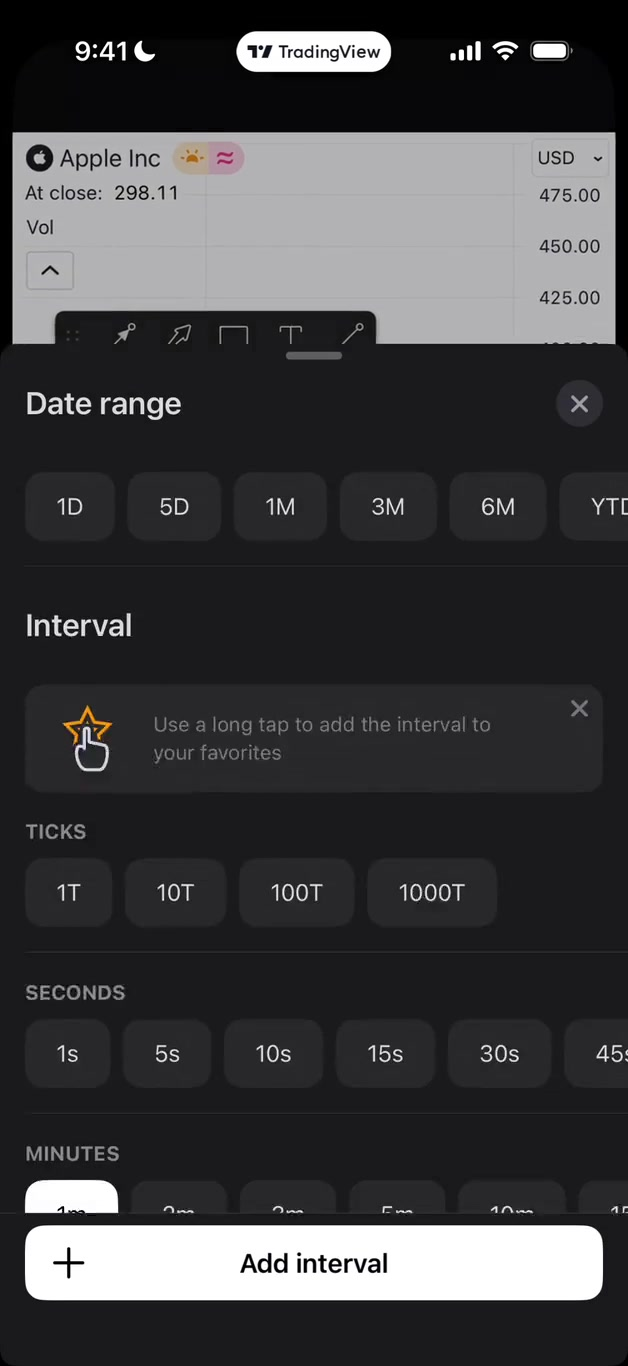
Change Your Time Frame
Tap the timeframe button, such as “1D,” to change the chart interval.
A one-day candle chart can be useful for swing trading, while a three-minute or five-minute chart may be more useful for intraday trading.
Match the timeframe to the type of decision you are trying to make.
Step 8:
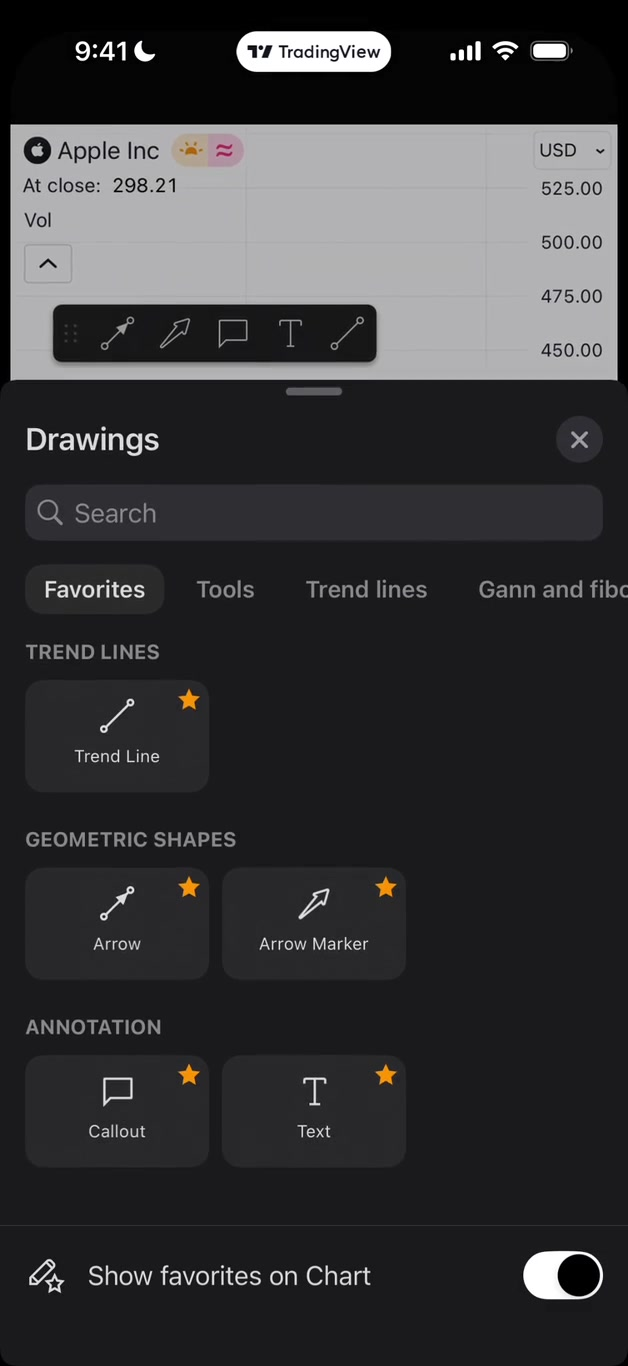
Open Drawing Tools and Save Favorites
Tap the drawing tool icon to open the drawings menu.
You can save your favorite tools, such as trend lines, arrows, callouts, and text.
This makes it faster to mark up charts when you are on your phone.
Step 9:
Draw Support and
Resistance
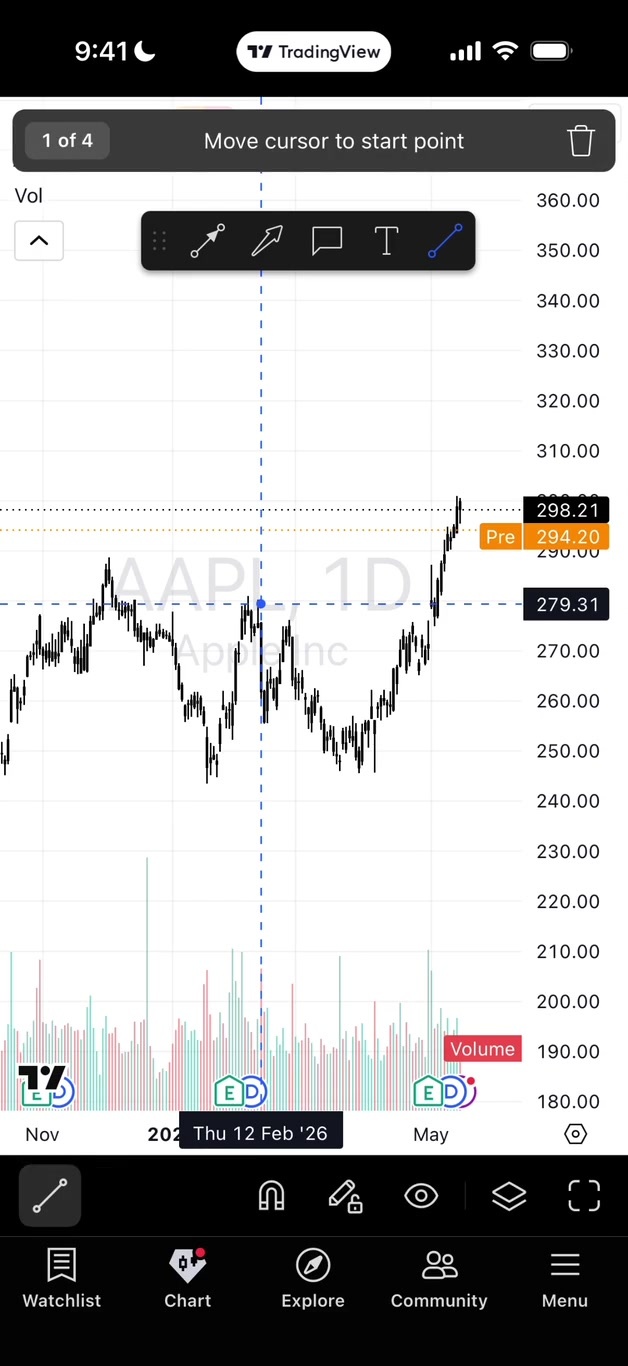
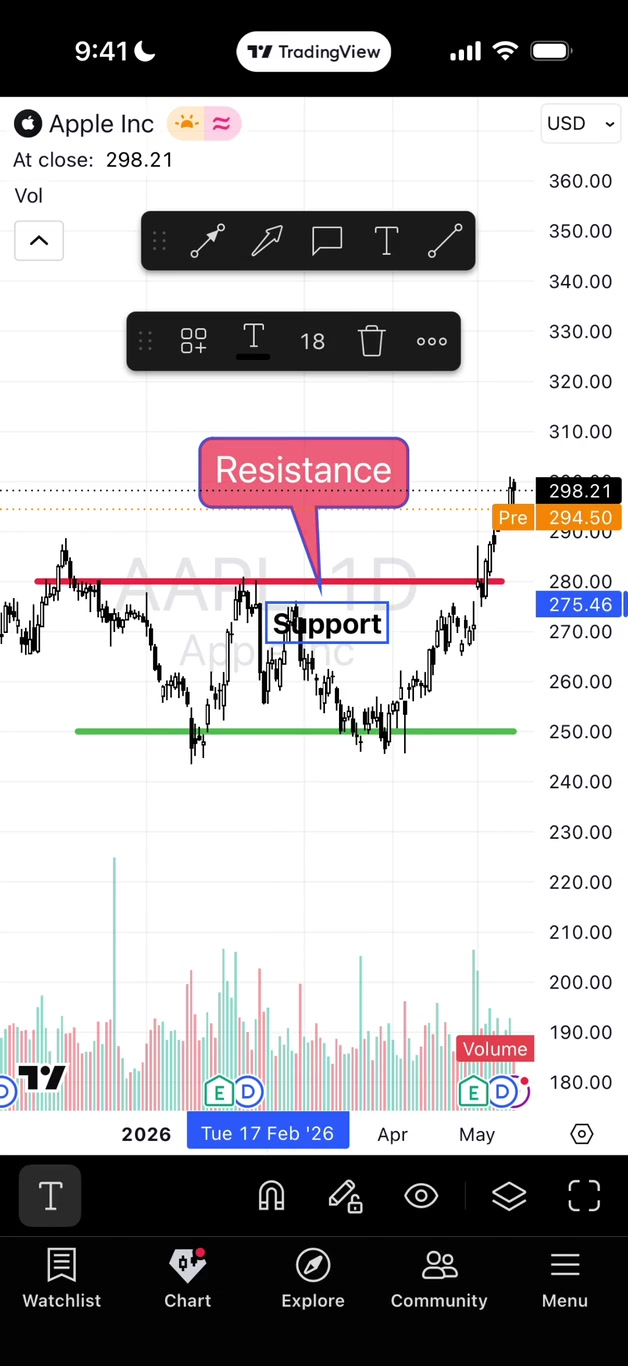
Use horizontal lines or trend lines to mark important support and resistance levels.
In the video, I marked Apple support around the 250 area and resistance around the 280 area.
These levels help you see where price has reacted before.
Step 10:
Use Coordinates for
Precision
Mobile charting can be a little finicky.
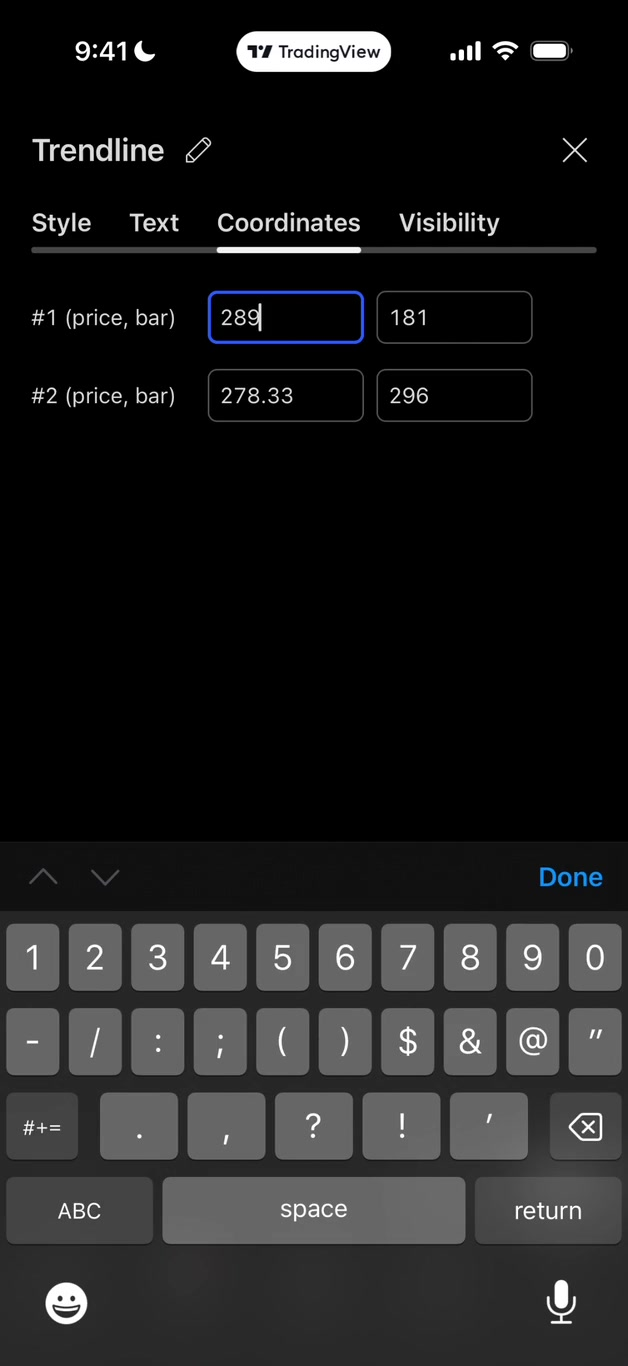
If your line is not exactly where you want it, double-tap the line and open the coordinate settings.
From there, you can type in the exact price level you want.
Step 11:
Add Callouts
And Notes
Callouts are useful when you want to label an area of the chart.
For example, you can write “Resistance” and anchor the note to the price level that matters.
This helps you come back later and quickly remember what you were watching.
Step 12: Check Earnings, Dividends, News, and Settings
The chart can also show important events like earnings and dividends. You can tap those markers to see more information. The news icon can help you pull up recent headlines connected to the stock.
The settings wheel lets you adjust things like visible units, price scale preferences, pre-market data, and time format.
Step 13: Use layouts
and Split Screens
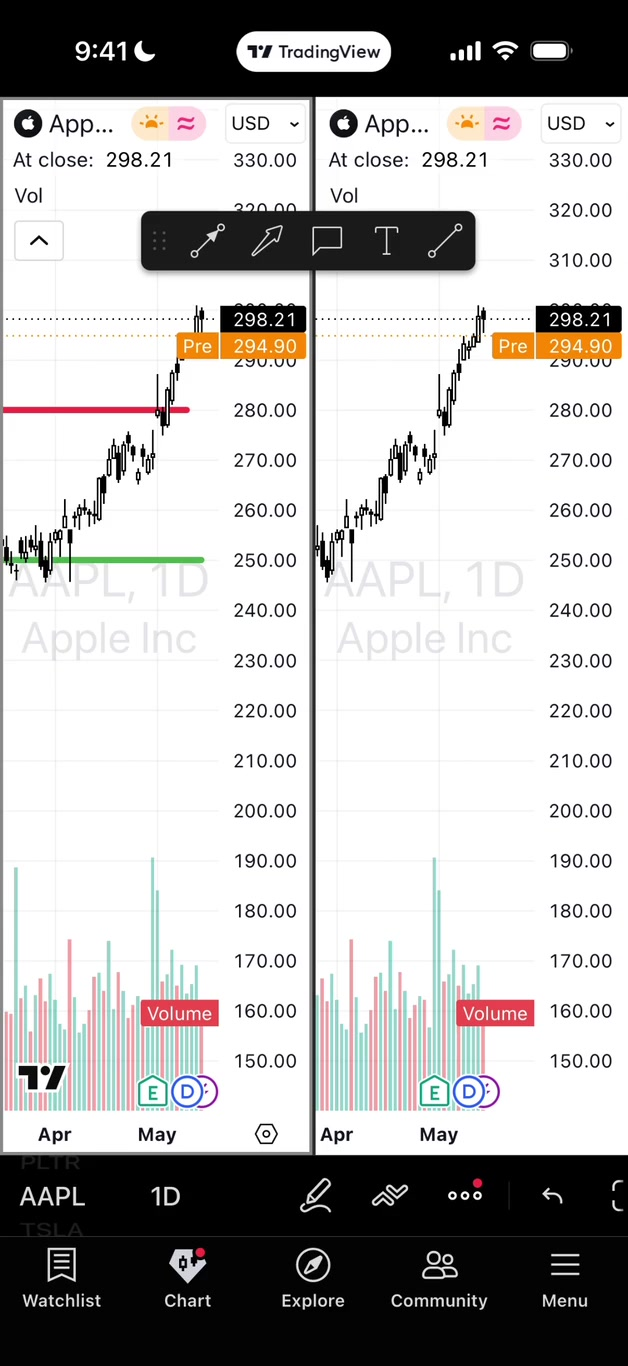
The layout feature allows you to view multiple charts on the screen. For example, you might watch the S&P 500 on one side and a stock you are trading on the other.
This can be helpful if you want to compare a stock against the broader market.
Step 14:
Create Useful Alerts
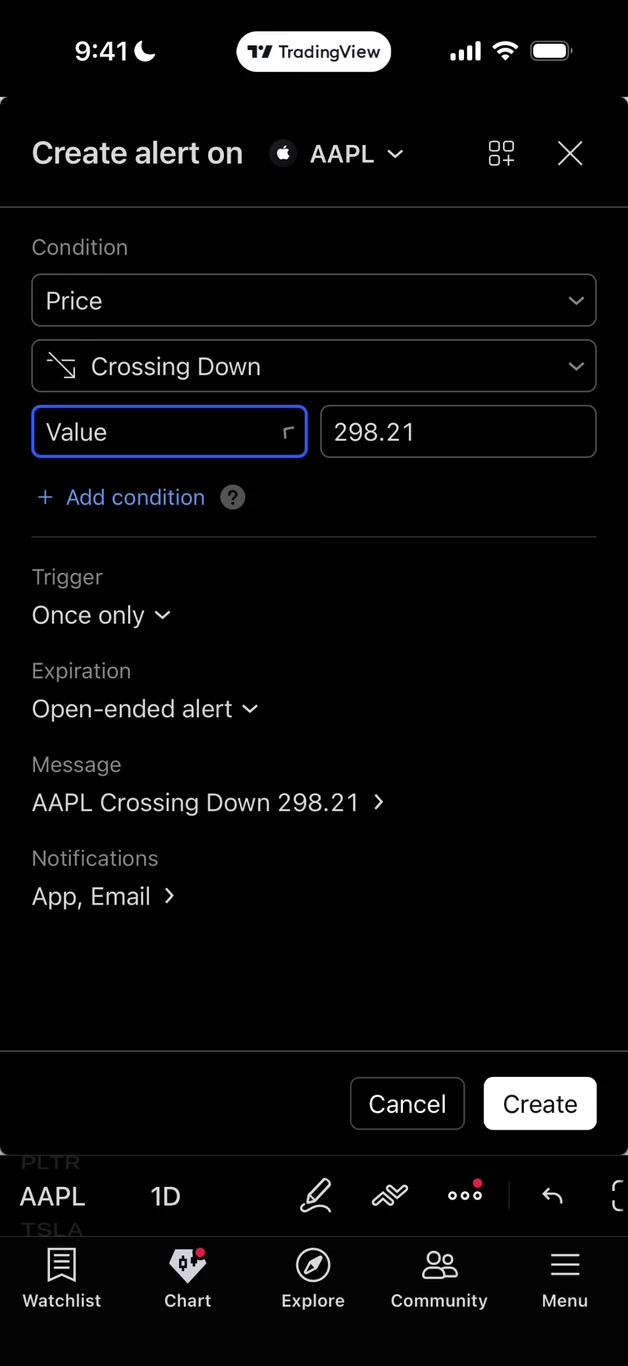
Alerts are one of the most practical mobile features.
You can tell TradingView to notify you when a stock crosses a specific price.
I recommend adding a message to the alert so you remember why you set it and what you planned to evaluate when it triggered.
Step 15:
Add Technical Indicators
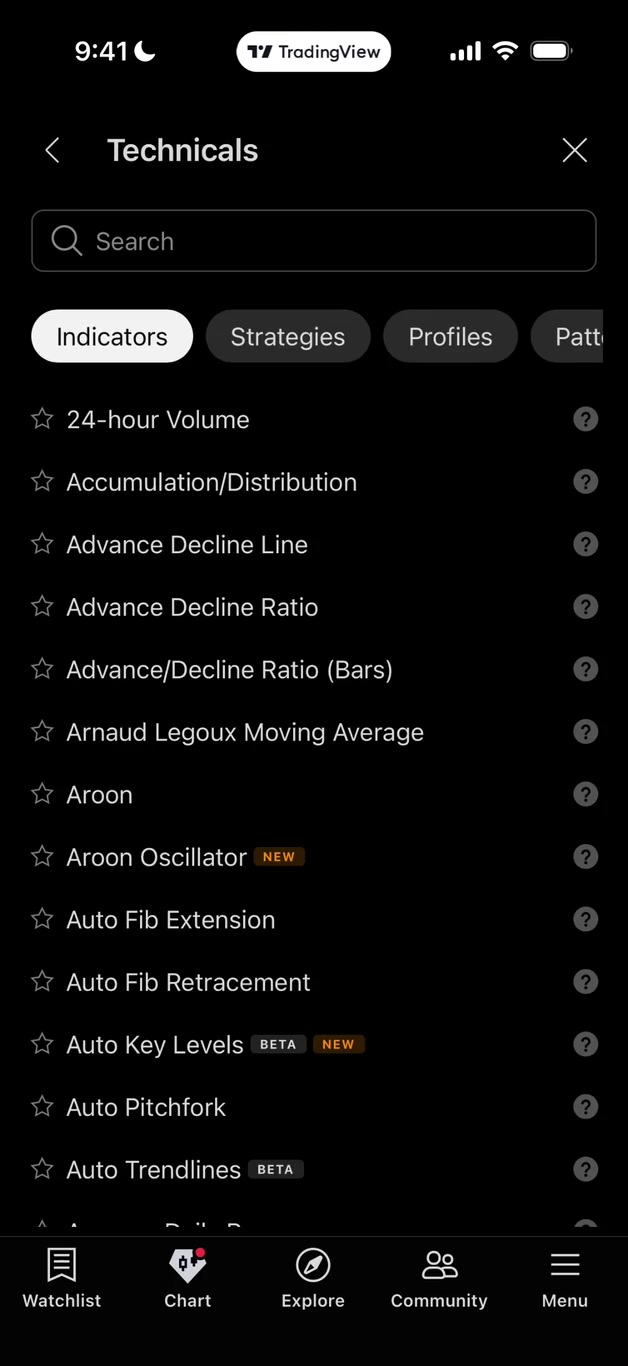
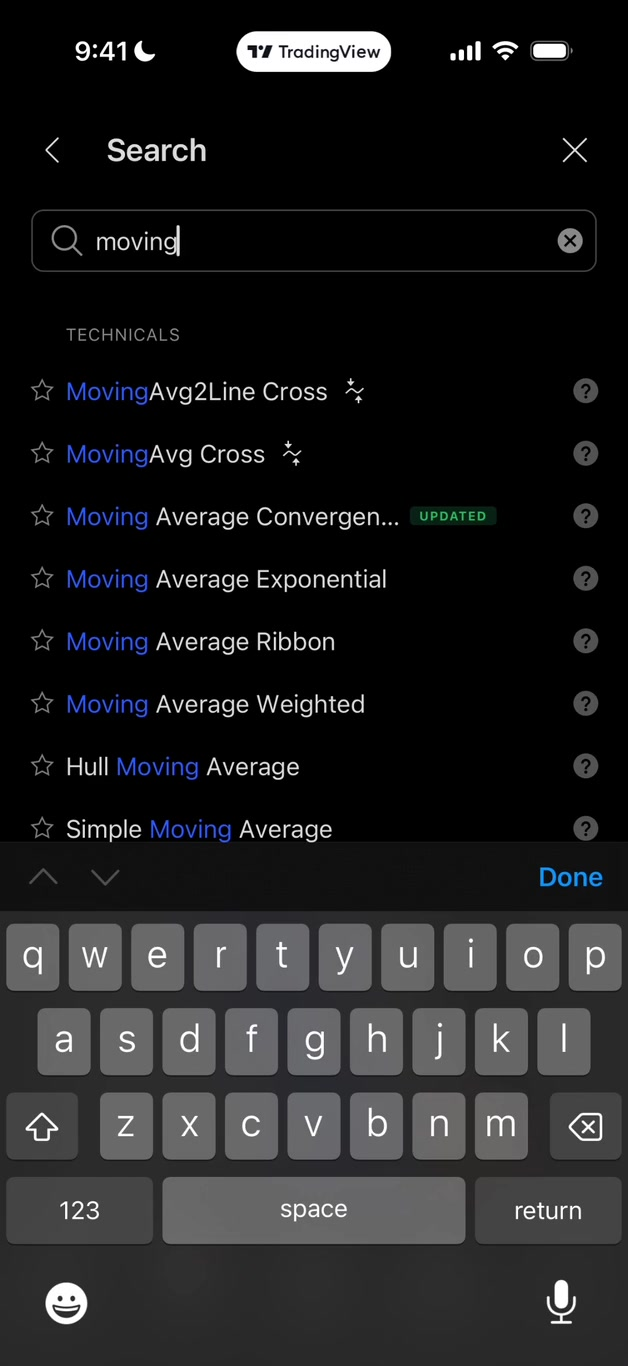
Tap the indicator menu to search for tools like Bollinger Bands or moving averages.
You can customize indicator settings, such as changing the moving average length or the color so you can tell one indicator from another.
Step 16:
Customize Moving Averages
If you use multiple moving averages, make sure they are easy to read.
In the video, I showed how to add one moving average, then add another and change its color so the two lines are not confusing.
Step 17:
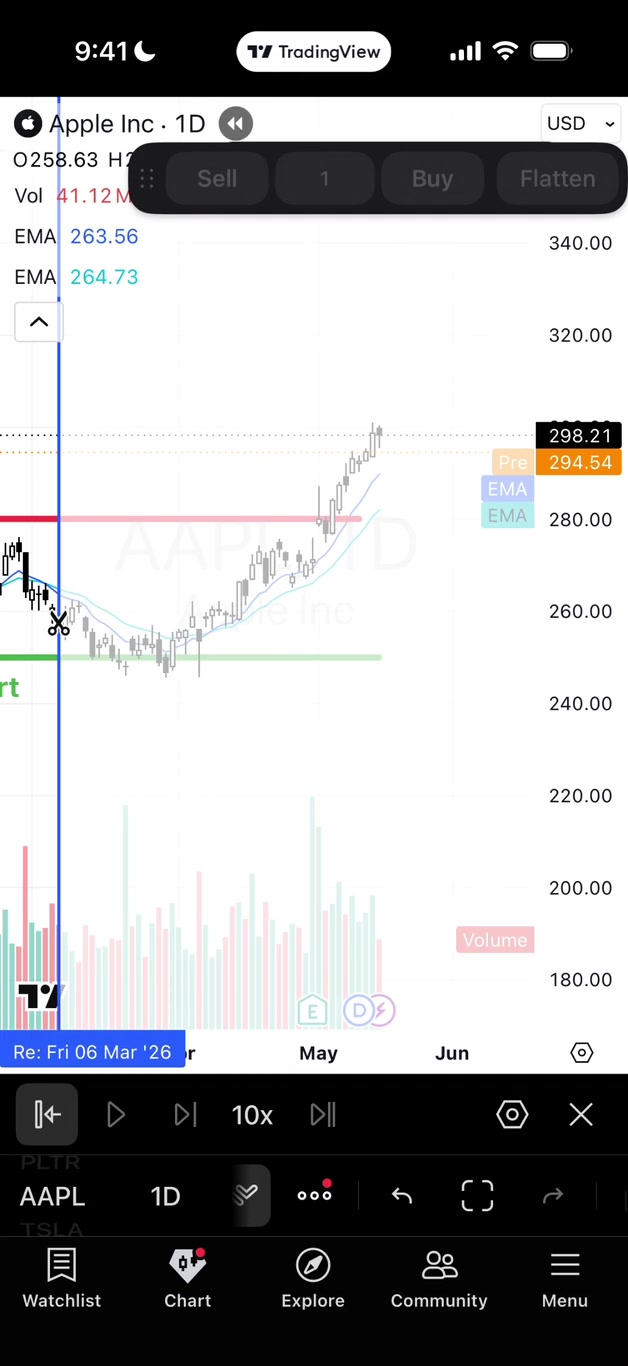
Practice with Bar Replay
Bar Replay lets you go back in time on the chart and replay the candles as if the move has not happened yet.
This is a powerful way to practice.
Ask yourself:
Would I have gotten in?
Would I have stayed in?
Would I have gotten out?
Step 18:
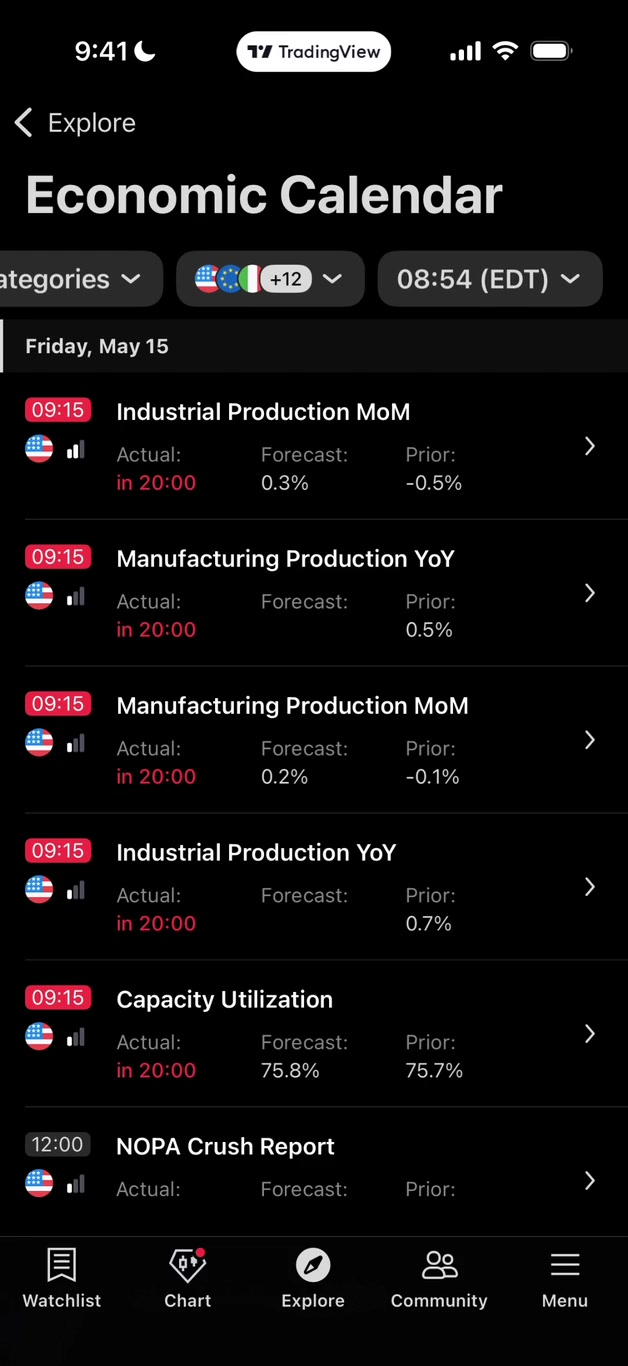
Use "Explore" for Market Awareness
The Explore tab gives you access to news, economic calendar events, and market information.
You can use it to quickly check what is happening in the market, especially if you want a high-level snapshot before looking at individual stocks.
Final Thoughts
The TradingView mobile app can feel like a lot at first, but you do not need to master every button on day one. Start with the tools that help you make better decisions: watchlists, charts, timeframes, support and resistance, alerts, indicators, and practice.
The more organized your process is, the less emotional your trading becomes. Use the app to slow yourself down, mark your levels, wait for your alerts, and build confidence through repetition.
And remember: you never go broke taking a profit.